Sandbox guide
Middesk has a test “Sandbox” environment that can be accessed through the API or the Partner Dashboard.
Through the dashboard
From the Partner Dashboard you can access the Sandbox test environment by clicking the “Environment” icon on the left nav bar and selecting the “Sandbox” environment.
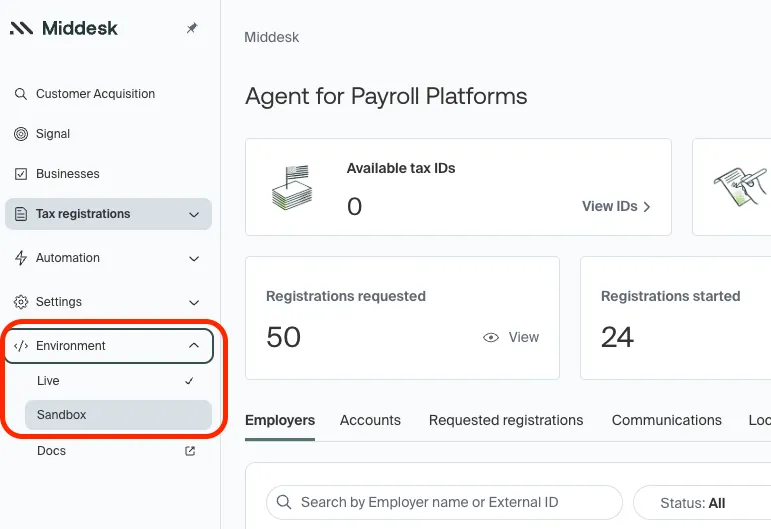
In Partner Dashboard Sandbox mode you can view all the Employers and Registration Requests you created via the Sandbox API.
Through the API
In order to make Sandbox API calls you must first obtain your test API key. After logging into your Middesk Partner Dashboard visit the Developer Settings page and find the API Key named “Test API key”.
The Middesk Sandbox API url is https://api-sandbox.middesk.com/v1/ and all API calls to this must be used with your Test API key.
1. Create a test registration request and test employer
You can create a test Employer and Registration Request using your Test API Key and the following command:
After making this API call you can refresh your Sandbox dashboard to see the new Employer and requested State registration(s).
For more information on creating Registration Requests see Create a Registration Request.
Note: For the above link be sure to use the Sandbox URL (https://api-sandbox.middesk.com/v1/) and your Test API Key.
2. Retrieve a test registration request
After creating your test Employer and Registration Request you can also retrieve data on the Registration Request via the Sandbox API. Use the returned test ID from the create API call and the following command:
Note: Replace 123-test-id in the above API request with the test ID returned from your create call.
Employer sandbox experience
After creating test Registration Requests in the Sandbox environment you can also step through what the Registration Request flow would be like for your employer.
Step 1: Toggle into Sandbox mode on the Partner Dashboard.
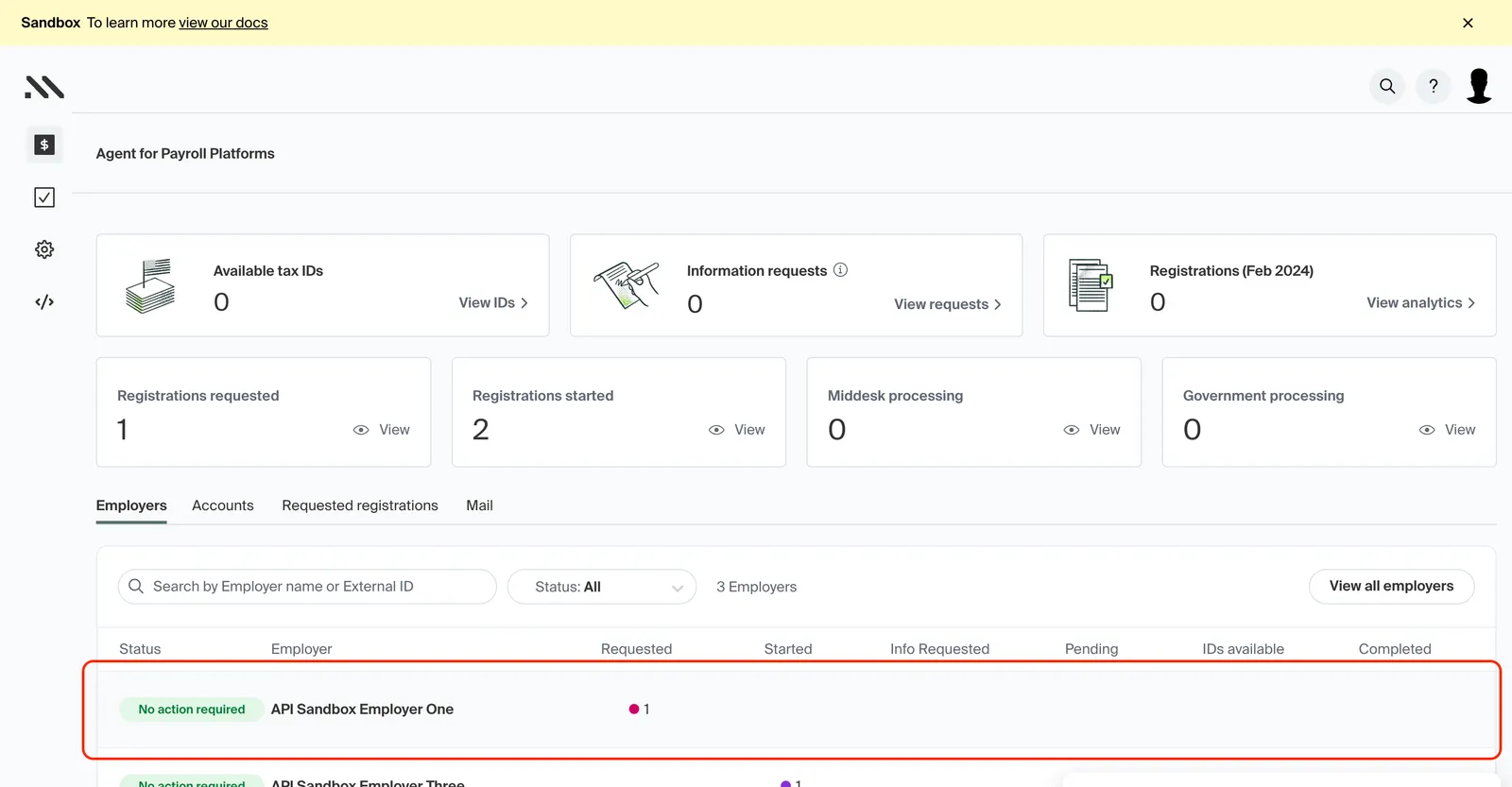
Step 2: Click into one of your test employers (created from a Sandbox API request)
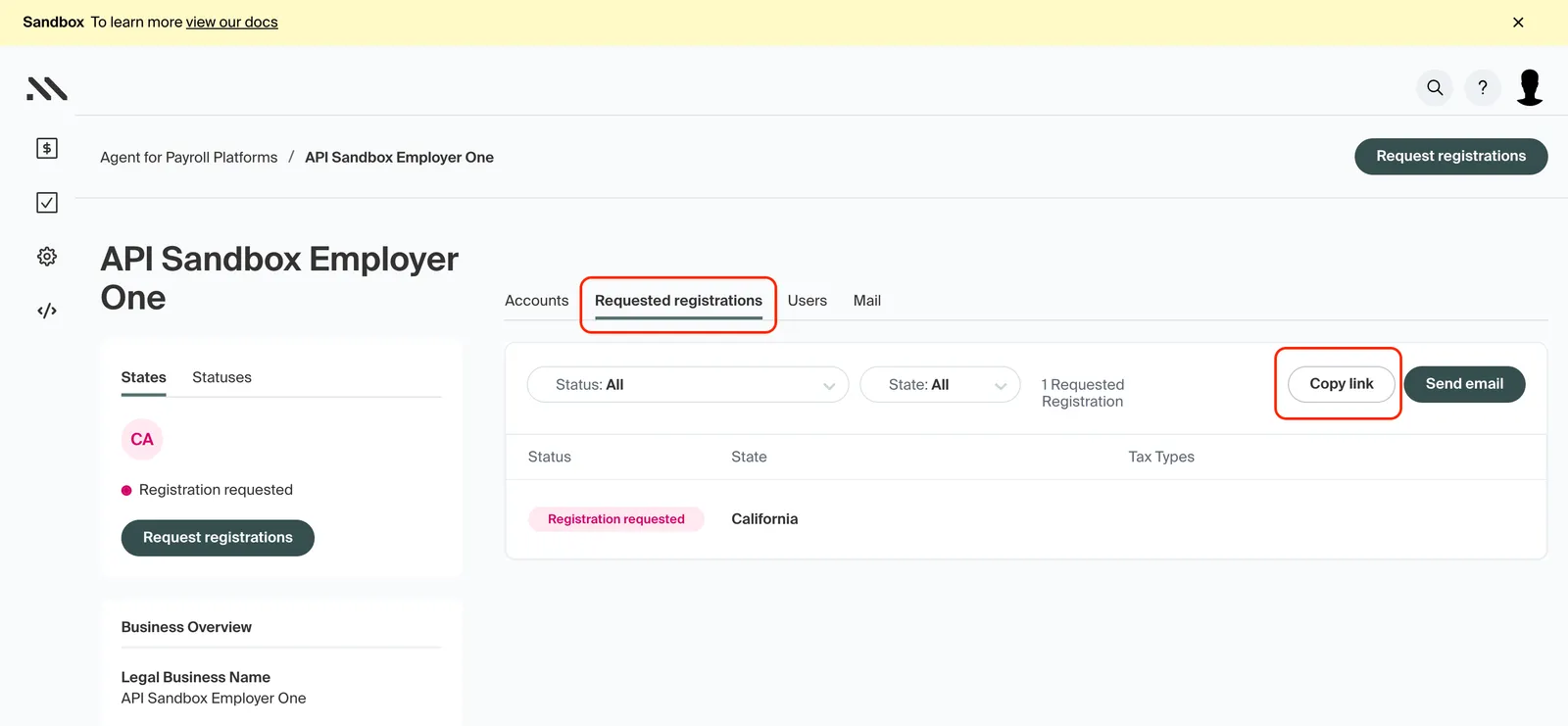
Step 3: Click on the “Requested registrations” tab and click on the “Copy link” button to save the Sandbox Registration Request URL onto your clipboard.
Note: This Registration Request link was also in the response from the Sandbox API create request.
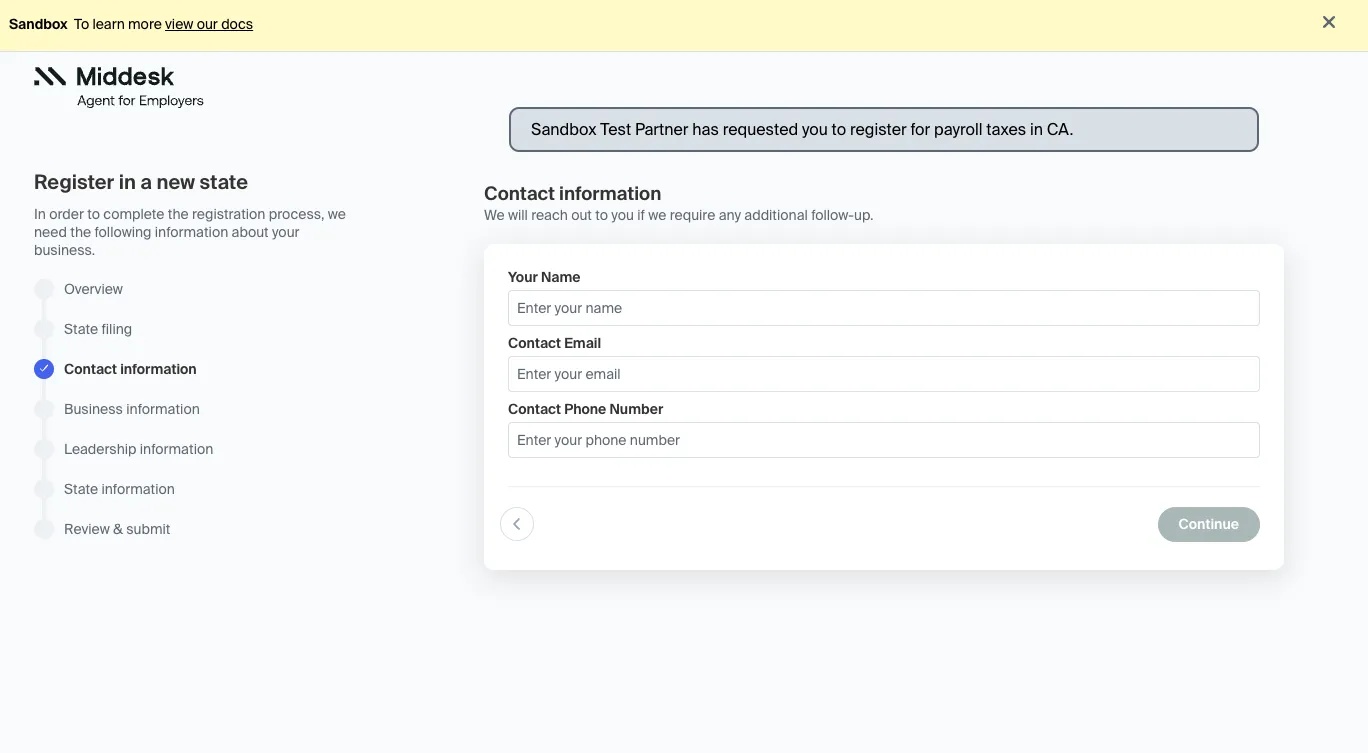
Step 4: Open a new tab/window and paste the Sandbox Registration Request URL. This takes you to the Sandbox Registration Request flow.
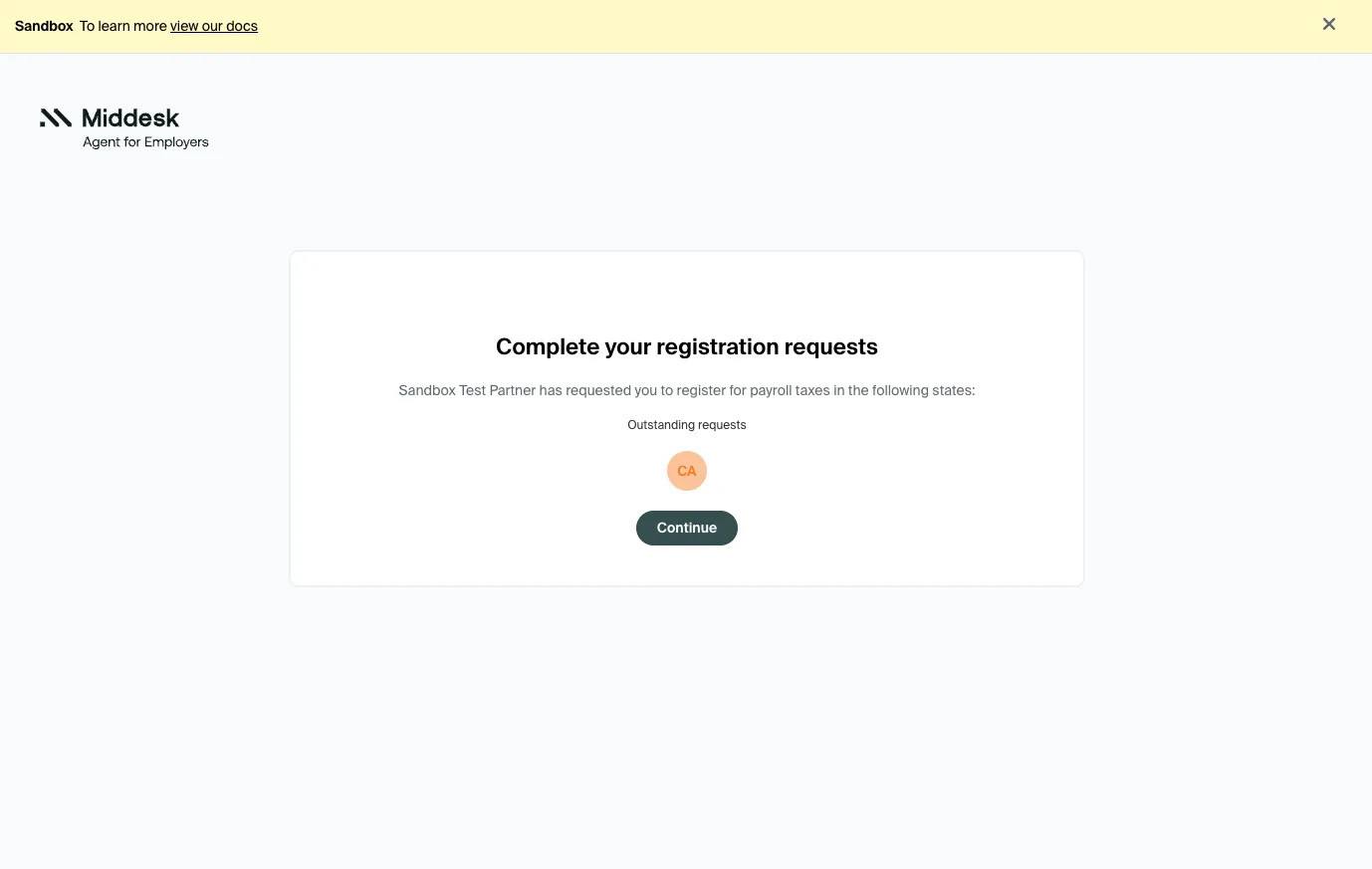
Step 5: Step through the Sandbox test Registration Request flow. Notice values that were provided in the Sandbox API create request are pre-populated throughout the form.
Note: Any data submitted in the Sandbox flow does not result in any “live” Tax Registrations.