

Invite employers
Partners can invite employers (child accounts) to use Middesk in several ways.
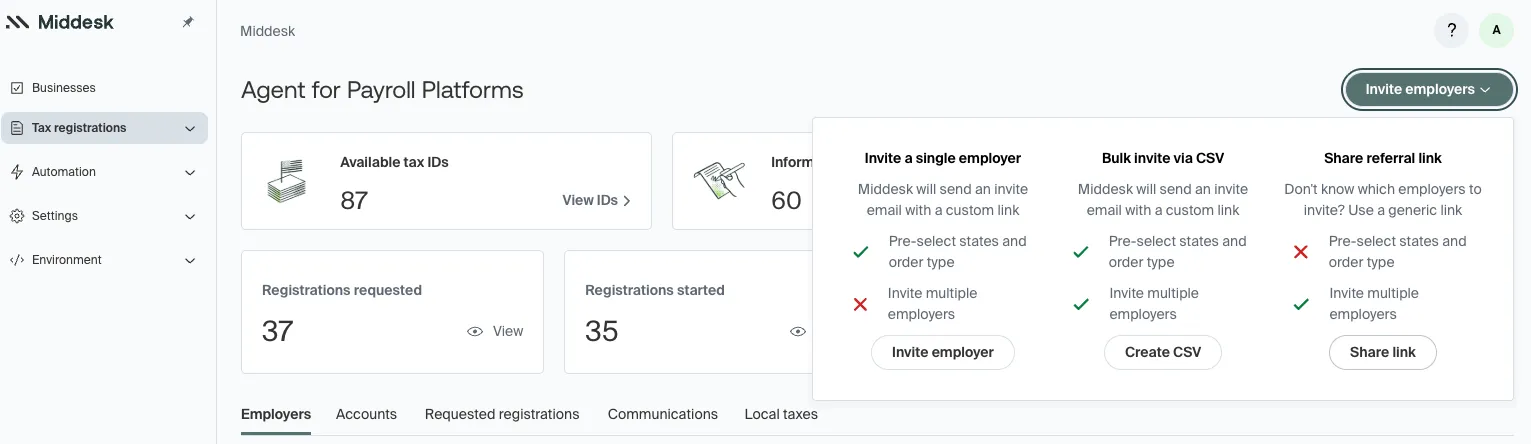
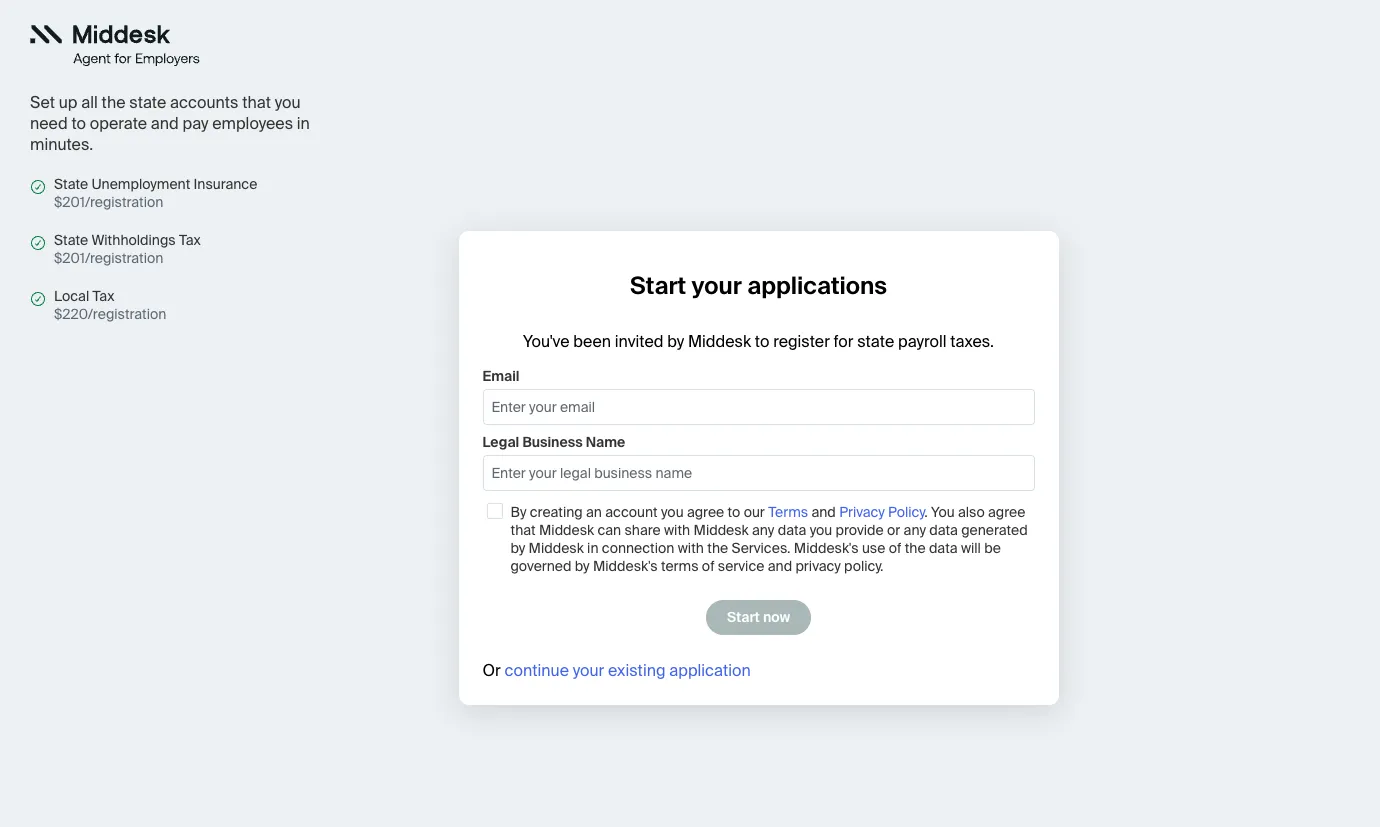
Send self sign-up referral links with the Dashboard
On the Partner Dashboard, use the Share referral link option to generate a link that enables employer self-sign-up. When completed, the sign-up form creates a new child account under the partner account. Employers then initiate enabled registrations from their employer dashboard.
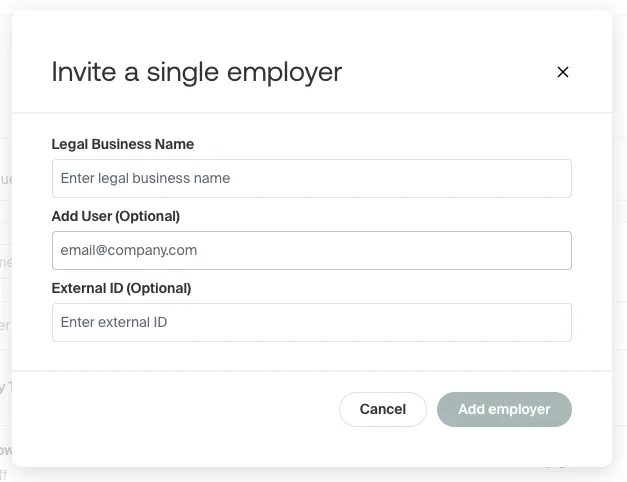
Directly add child accounts with the Dashboard
Add individual employers directly from the Partner Dashboard with the Invite a single employer option.
This creates employer accounts without requiring user emails or specific registrations. Request registrations from the Partner Dashboard later, as needed.
Bulk upload a CSV with the Dashboard
Use the Bulk Invite via CSV option on the Partner Dashboard to upload a CSV with multiple child accounts and at least one requested state registration. The system creates new accounts for any employers and contact emails not already under the partner account.
The CSV must include the required columns:
Create a company with the API
Using the Create Company endpoint, directly create a child account or company with the API.
This results in a company_id that partners can use to create applications or registration requests with the API.
Create a registration request with the API
Using the Create Registration Request endpoint, create a child account and request a registration in a single API call.
This uses the provided company_name and email request parameters to do a “find or create” on a child account with that information under the partner account.