

Use single sign-on (SSO)
Single sign-on (SSO) uses your existing, centralized identity provider (IdP) for user authentication to the Middesk Dashboard. Your admins no longer have to maintain access to Middesk, and your users have one fewer password to remember.
Middesk supports SSO over standard authentication protocols like SAML 2.0, OAuth 2.0, and OpenID Connect. This includes multiple common external identity providers such as:
- Microsoft Active Directory Federation Services
- Okta
- Ping Identity
- OneLogin
- And others
Configure SSO
Configure your SSO connection
In the resulting page that opens, configure your SSO connection.
There’s a guided setup process to configure SSO for the most popular identity providers. For more advanced configurations, there are also buttons to configure a custom SAML or OpenID Connect integration.
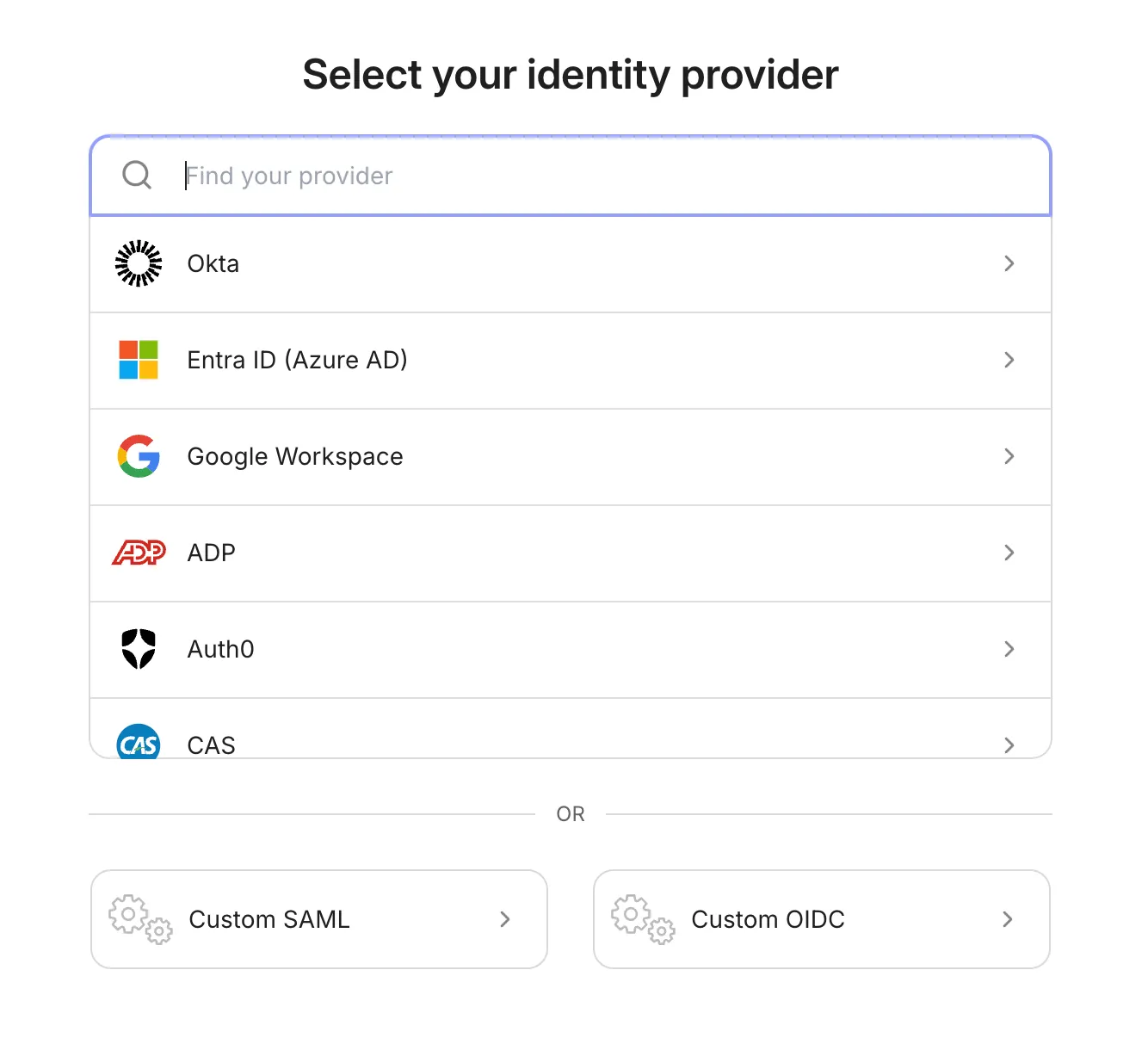
To demo the SSO configuration process, visit the WorkOS Admin Portal demo and click Single Sign-on > Configure.
Add new users with SSO
Manually add new users to your Middesk account using the Add User button on the Team Settings page of the Dashboard. Invite new users by entering their email address and selecting a role.
Users receive an email inviting them to activate their Middesk account. If SSO is already configured, users skip the create password step of the new user flow and instead authenticate using your configured IdP.
Alternatively use Middesk’s Directory Sync capability to automatically sync your Middesk users with your IdP.
Sign in using SSO
Once SSO is configured, users select Sign in with SSO on the sign-in page to access the Dashboard.
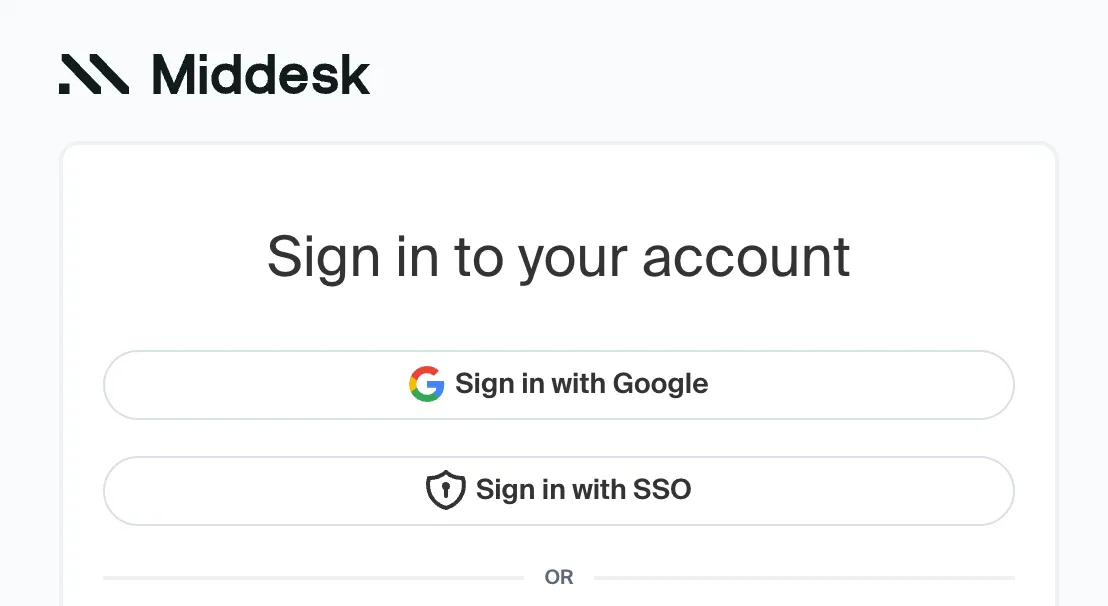
On the following page, the user submits their email address. If the submitted email address matches an existing user on an account with SSO enabled, they’re prompted to log in through the configured identity provider.