> For clean Markdown of any page, append .md to the page URL.
> For a complete documentation index, see https://docs.middesk.com/llms.txt.
> For AI client integration (Claude Code, Cursor, etc.), connect to the MCP server at https://docs.middesk.com/_mcp/server.
# Embed tax registration intake forms on your site
> Embed the Middesk tax registration intake flow directly in your application using the JavaScript SDK.
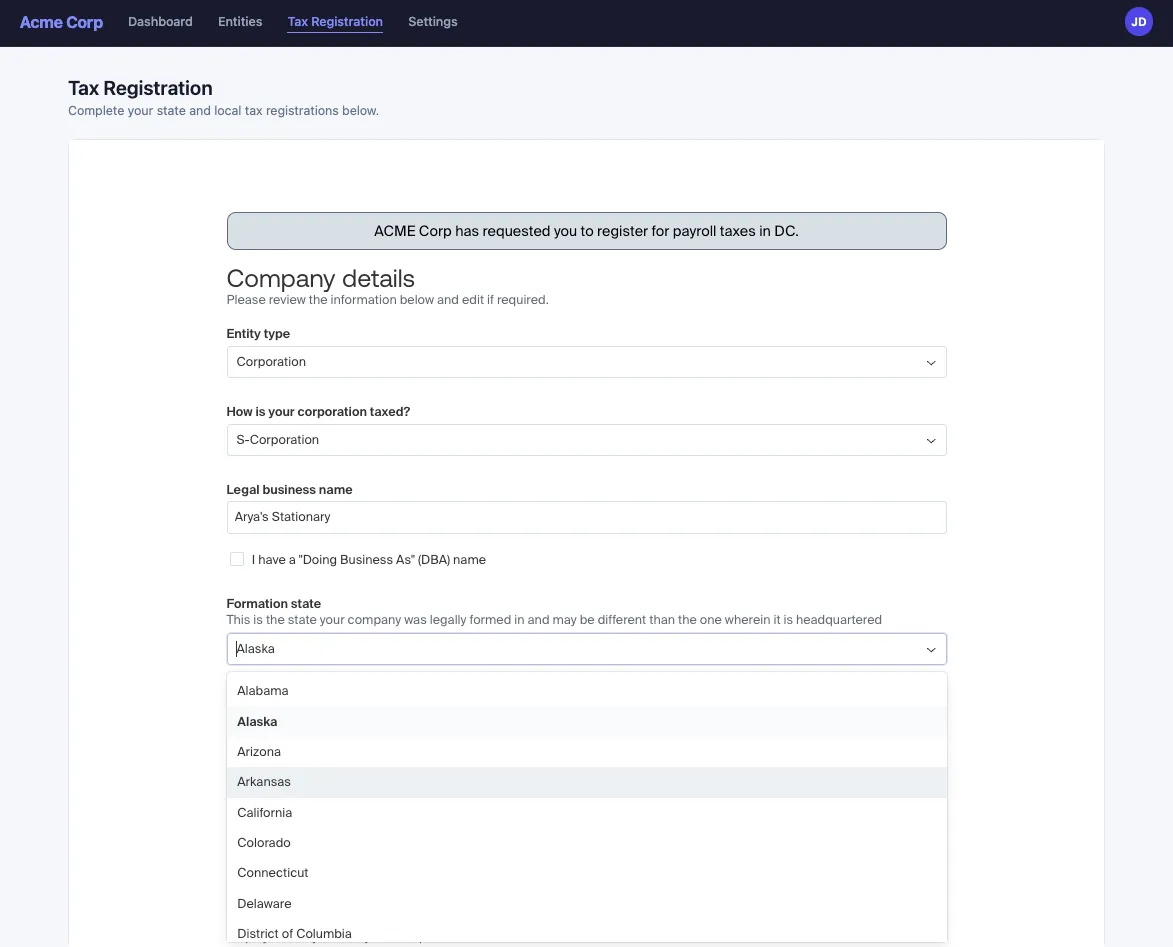
The Middesk JavaScript SDK lets you embed the tax registration intake flow directly in your application. Your users complete state and local tax registrations without leaving your site, while Middesk handles the form logic, jurisdiction requirements, and submission.
## Before you begin
Make sure you have the following:
* A Middesk account with entity management enabled
* A [publishable API key](/build/api-keys) (prefixed `pk_`) — used in your frontend to initialize the SDK
* A [secret API key](/build/api-keys) (prefixed `mk_`) — used on your server to request passcodes
* Your domain registered as an [allowed domain](#configure-allowed-domains)
* A [passcode](#get-a-passcode) for the entity
> **Warning**
>
> Your **publishable key** is safe to include in client-side code. Your **secret key** must only be used from your server and should never be exposed in frontend code or shared with end users.
## Configure allowed domains
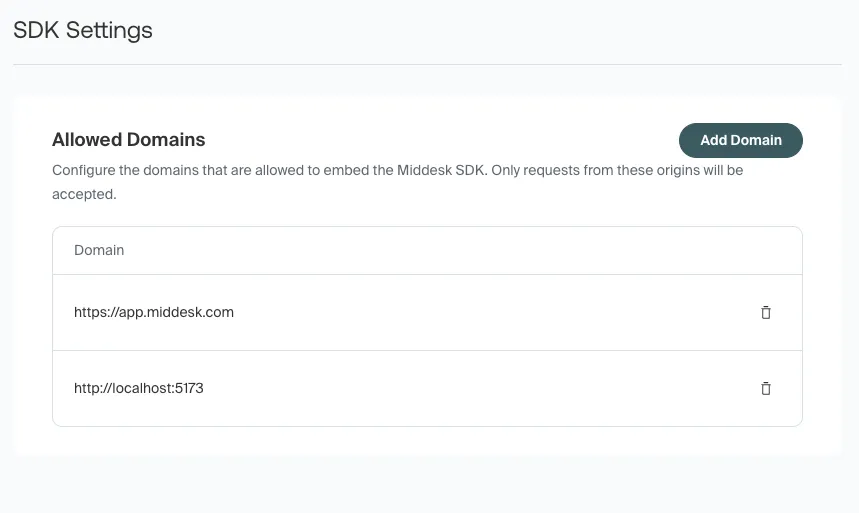
Register your application's domain as an allowed domain before loading the SDK. Requests from unregistered domains are rejected.
To add an allowed domain, go to **Developer > SDK Settings** in the [Middesk dashboard](https://app.middesk.com/settings/sdk).
## Get a passcode
The SDK requires a passcode to authenticate the session for a specific company. Retrieve one from your backend using the `GET /v1/partner/passcode` endpoint, authenticated with your secret API key.
The endpoint accepts either a `company_id` or an `external_id` query parameter to identify the company:
**`By company ID`**
```curl title="By company ID"
curl https://api.middesk.com/v1/partner/passcode?company_id=COMPANY_ID \
-H 'Authorization: Bearer mk_live_YOUR_API_KEY'
```
**`By external ID`**
```curl title="By external ID"
curl https://api.middesk.com/v1/partner/passcode?external_id=EXTERNAL_ID \
-H 'Authorization: Bearer mk_live_YOUR_API_KEY'
```
The response includes a `passcode` field — pass this value as the `passcode` prop when creating the SDK component:
```json
{
"id": "passcode_id",
"passcode": "PASSCODE",
"expires_at": "2026-03-01T00:00:00.000Z",
"url": "https://..."
}
```
> **Note**
>
> You cannot provide both `company_id` and `external_id` in the same request. If no active passcode exists for the company, one is created automatically.
## Install the SDK
Add the Middesk SDK script to your page:
```html
```
## Set up the component
#### Create a Middesk instance
Initialize the SDK with your publishable key:
```javascript
const middesk = new Middesk({ publishableKey: "pk_live_YOUR_PUBLISHABLE_KEY" });
```
#### Create the tax registration intake component
Call `createComponent` with the component name, the passcode for the entity, and an event handler:
```javascript
const component = await middesk.createComponent({
name: "tax-registration-intake",
props: {
passcode: "PASSCODE",
highlighted_state: "NY"
},
onEvent: (event) => {
console.log("SDK event:", event);
}
});
```
#### Mount and display the component
Attach the component to a container element in your page, then make it visible:
```javascript
const container = document.getElementById("middesk-container");
component.mount(container);
component.open();
```
The container element should have explicit dimensions. The component fills the width and height of its container:
```html
```
### Full example
```html
```
## Component props
Pass props to the intake component through the `props` object in `createComponent`.
| Prop | Type | Required | Description |
| ------------------- | ------ | -------- | -------------------------------------------------------------------------------------------------------------------------------------- |
| `passcode` | string | Yes | The passcode that authenticates the session for the entity. See [Get a passcode](#get-a-passcode). |
| `highlighted_state` | string | No | A two-letter US state code (for example, `NY`). Pre-selects that state's tile on the first screen and moves it to the top of the list. |
When you set `highlighted_state`, the component selects and reorders the matching open registration request. If the state has no open request — because the code is unrecognized or that registration has already been submitted — the component falls back to selecting the first open request and leaves the list in its original order.
## Handle events
The `onEvent` callback receives events from the component as the user interacts with the intake flow. Each event has the following shape:
| Field | Type | Description |
| --------------- | ------ | ----------------------------------------------------------------------------- |
| `type` | string | The event type. One of `READY`, `DONE`, or `ERROR`. |
| `componentName` | string | The name of the component that emitted the event (`tax-registration-intake`). |
| `payload` | object | Additional data associated with the event. Present on `ERROR` events. |
### `READY`
Emitted when the component has loaded and is ready for user interaction. No payload.
```json
{
"type": "READY",
"componentName": "tax-registration-intake"
}
```
### `DONE`
Emitted when the user has completed all outstanding tax registration requests. No payload.
```json
{
"type": "DONE",
"componentName": "tax-registration-intake"
}
```
### `ERROR`
Emitted when the component encounters an error. The `payload` includes an `error` object with a code and message.
```json
{
"type": "ERROR",
"componentName": "tax-registration-intake",
"payload": {
"error": {
"code": "LOAD_ERROR",
"message": "Missing required props: passcode"
}
}
}
```
| Error code | Description |
| ---------------- | --------------------------------------------------------------------------------- |
| `LOAD_ERROR` | The component failed to load. |
| `UNAUTHORIZED` | The passcode is invalid or expired. Request a new one from the passcode endpoint. |
| `NOT_FOUND` | The requested resource was not found. |
| `INTERNAL_ERROR` | An unexpected error occurred within the component. |
### Example
```javascript
onEvent: (event) => {
switch (event.type) {
case "READY":
console.log("Component is ready");
break;
case "DONE":
console.log("User completed all registrations");
break;
case "ERROR":
console.error(event.payload.error.code, event.payload.error.message);
break;
}
}
```
## Component lifecycle methods
The object returned by `createComponent` exposes the following methods:
| Method | Description |
| ------------------ | --------------------------------------------------------------------------------------------------------------- |
| `mount(container)` | Attaches the component to a DOM element. Call this once after creating the component. |
| `open()` | Makes the component visible. |
| `close()` | Hides the component without removing it. Call `open()` to show it again. |
| `destroy()` | Removes the component from the DOM and cleans up resources. After calling this, the component cannot be reused. |
## Test in sandbox
Use the Middesk sandbox environment to test the embedded tax registration intake flow before going live.
> **Note**
>
> Make sure to add the host you use for sandbox testing (for example, `localhost`) to your [allowed domains](#configure-allowed-domains). Requests from unregistered domains are rejected even in sandbox.
#### Create sandbox API keys
Generate a sandbox publishable key (`pk_test_`) and a sandbox secret key (`mk_test_`) from **Developer** in the [Middesk dashboard](https://app.middesk.com/settings/credentials).
#### Create test registration requests and company
Use the sandbox API to create companies and tax registration requests. See **Manage Business Entities > [Sandbox Guide](/manage-entities/sandbox-guide)** for details on creating test data.
#### Request a sandbox passcode
Call the sandbox passcode endpoint with your sandbox secret key:
```curl
curl https://api-sandbox.middesk.com/v1/partner/passcode?company_id=COMPANY_ID \
-H 'Authorization: Bearer mk_test_YOUR_SECRET_KEY'
```
#### Initialize the SDK with sandbox credentials
Use your sandbox publishable key and the passcode from the previous step:
```javascript
const middesk = new Middesk({
publishableKey: "pk_test_YOUR_PUBLISHABLE_KEY"
});
const component = await middesk.createComponent({
name: "tax-registration-intake",
props: {
passcode: "SANDBOX_PASSCODE",
highlighted_state: "NY"
},
onEvent: (event) => {
console.log("SDK event:", event);
}
});
```
> **Get a demo**
>
> Contact your account manager or [contact sales](https://www.middesk.com/contact-sales) to inquire about access.